What can you do with it?
Offprint turns the web page you're reading into a file you can keep. Open any article in Safari, tap Offprint, pick a format, and share it anywhere — no copy-pasting, no account, and everything happens on your device.
Read offline
Save long reads as EPUB and send them to Apple Books, Kindle, or any e-reader for flights and commutes.
Build a notes library
Clip articles as Markdown straight into Obsidian, Notion, or Bear with the formatting intact.
Archive sources
Keep a clean, paginated PDF of research, receipts, or documentation you may need later.
Keep it private
Conversion runs locally — nothing is uploaded and nothing is tracked.
Enable Offprint in Safari
Before you can export pages, turn the extension on in Settings. This takes about a minute and you only do it once.
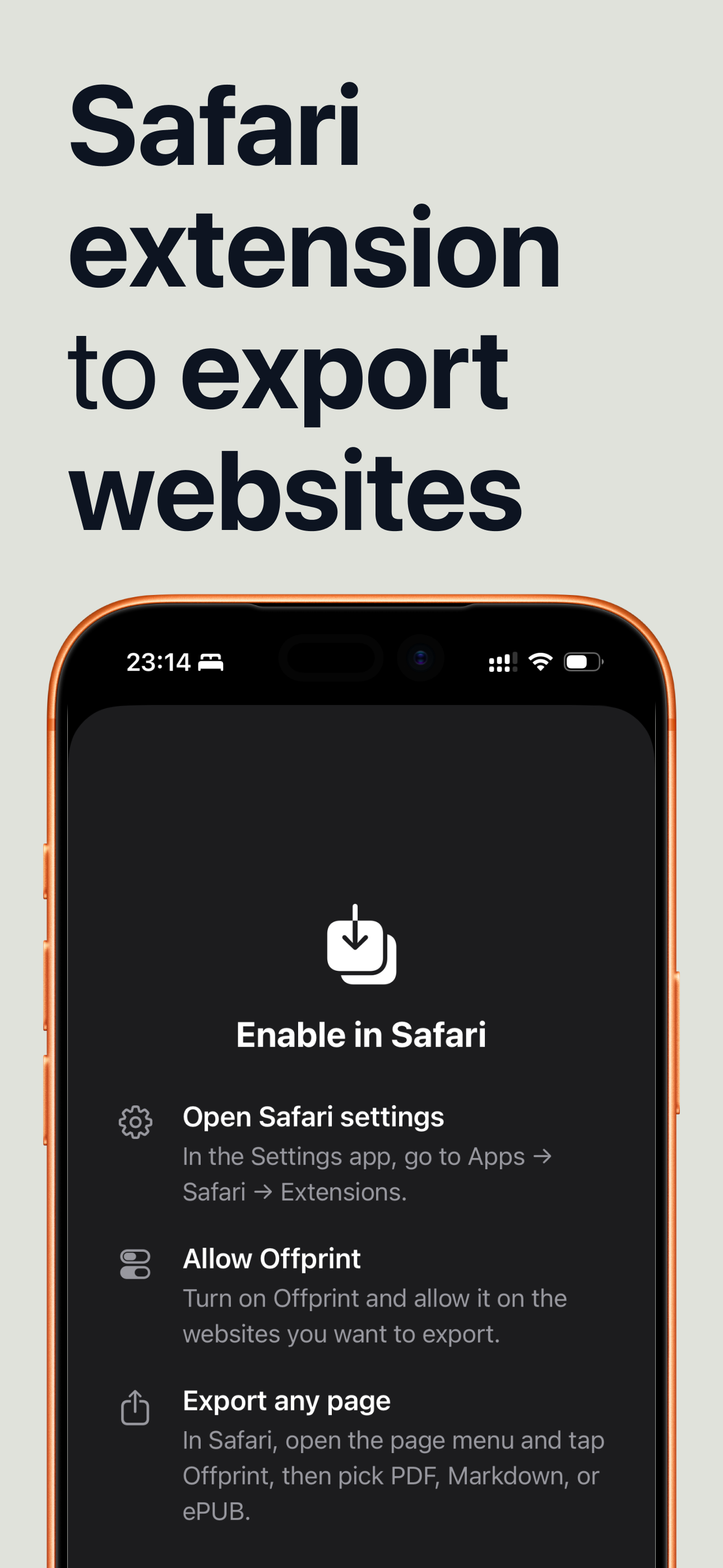
Open Safari settings
In the Settings app, go to Apps → Safari → Extensions.
Turn on Offprint
Tap Offprint and switch it on.
Allow it on websites
Choose Allow for the sites you want to export from — you can allow every site, or grant permission per site the first time you use it.
Offprint needs access to the page you're viewing so it can read the article and convert it. That access stays on your device; the page contents are never sent anywhere.
Export a Page
Once the extension is enabled, saving a page is a few taps from the Safari toolbar.
Open the page menu
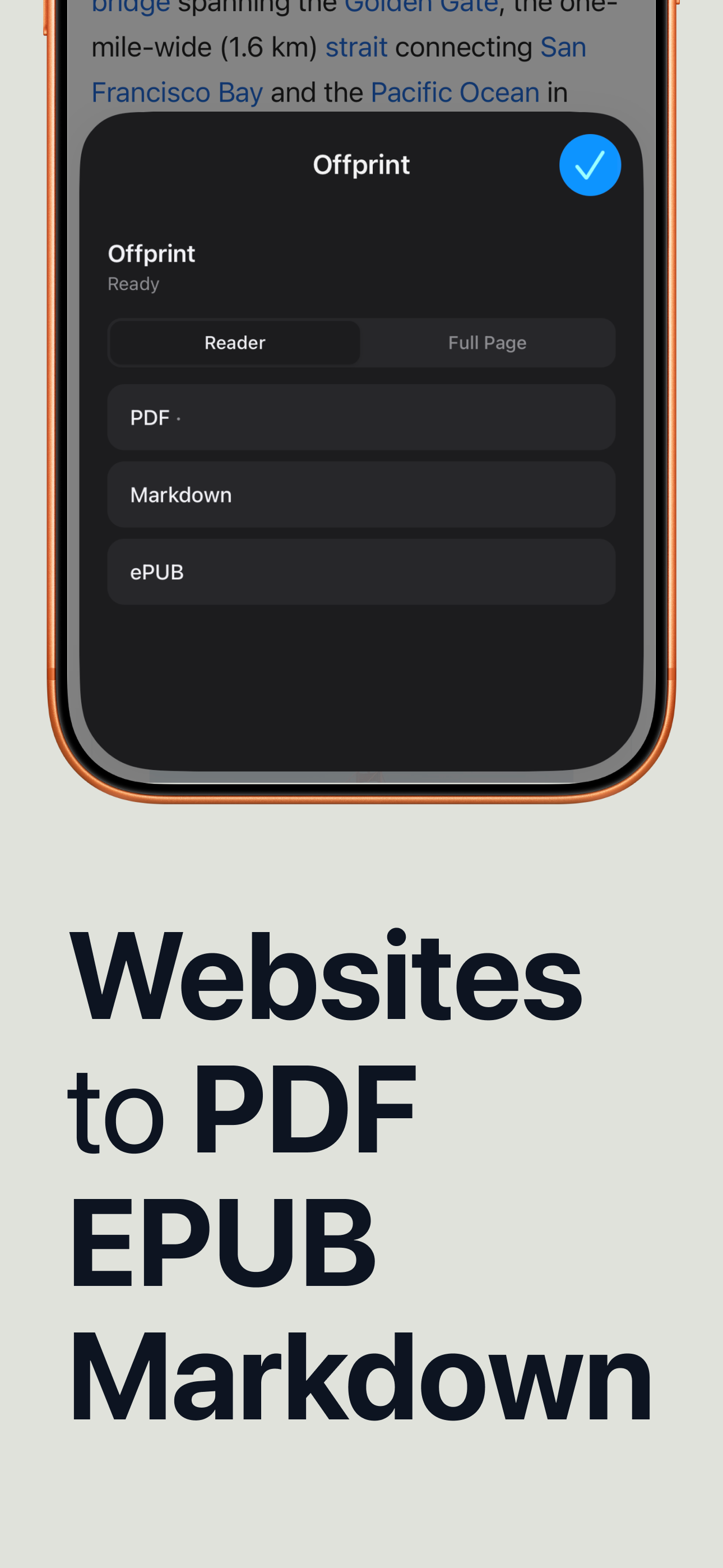
In Safari, open the article you want to keep and tap the page menu (the aA / extensions button in the toolbar), then choose Offprint.
Pick Reader or Full Page
Use Reader to keep just the article — no ads, navigation, or cookie banners — or Full Page to capture everything.
Choose a format
Tap PDF, Markdown, or ePUB. Offprint builds the file right on your device.
Preview & Share
Offprint shows you exactly what you'll get before you save it, then hands the file off to wherever you want it.
Check the preview
Review the generated file in the built-in preview so there are no surprises or broken layouts.
Share it anywhere
Use the standard share sheet to AirDrop it, Save to Files, Send to Kindle, drop it into a notes app, or attach it to mail.
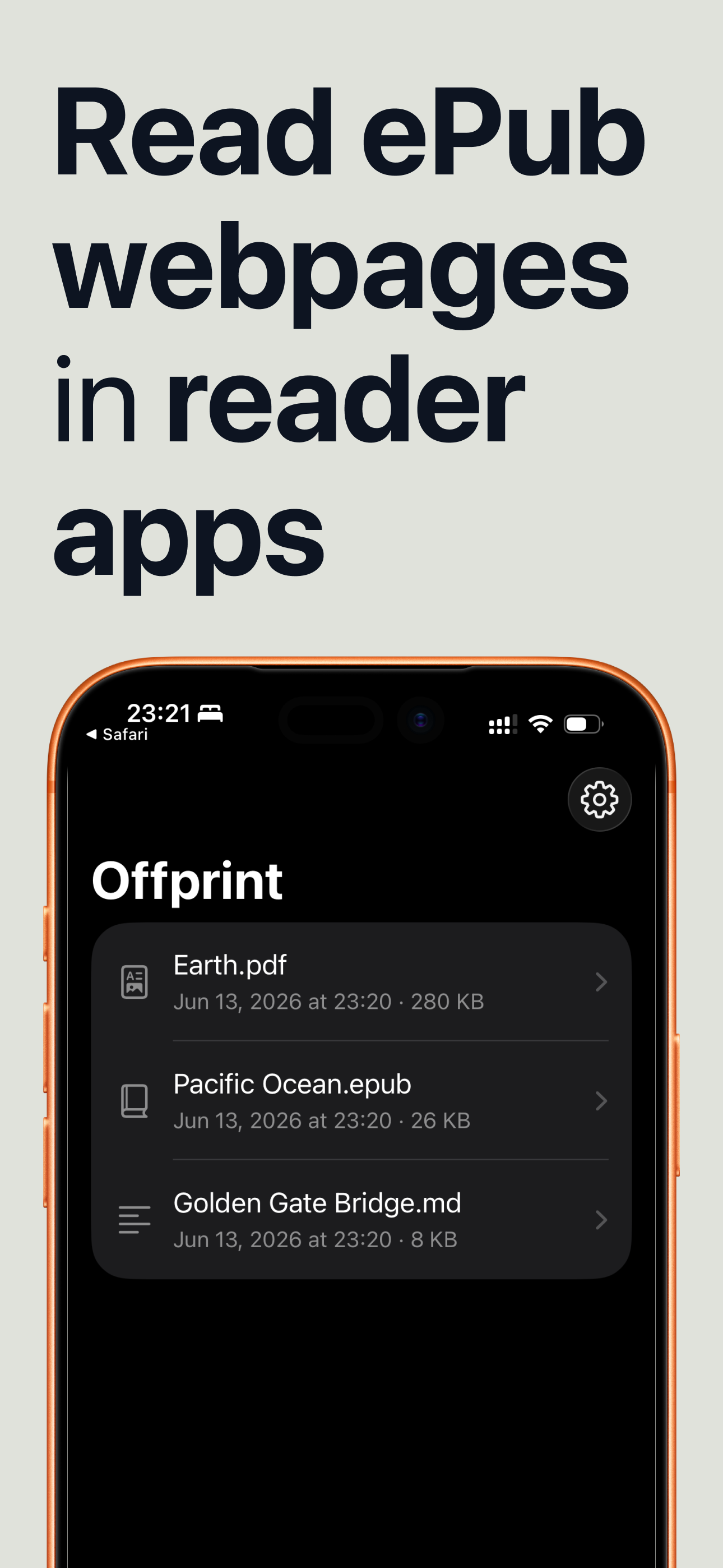
Exported files also stay in the Offprint app, so you can re-share or read them again later without converting the page a second time.
Pick the Right Format
Each format is suited to a different destination — here's a quick guide.
A clean, paginated document for printing, annotating, or archiving exactly as it looks.
A real e-book that reflows to fit your screen — perfect for Apple Books, Kindle, and e-readers.
Plain-text formatting that drops straight into Obsidian, Notion, Bear, or any notes app.
Start saving the web
Download Offprint and keep the page in front of you — in the format you actually use.
Download on the App Store